Cars Overboard Controls & UI
Drive clean, see threats sooner, and find Shop, Garage, and codes without fumbling.
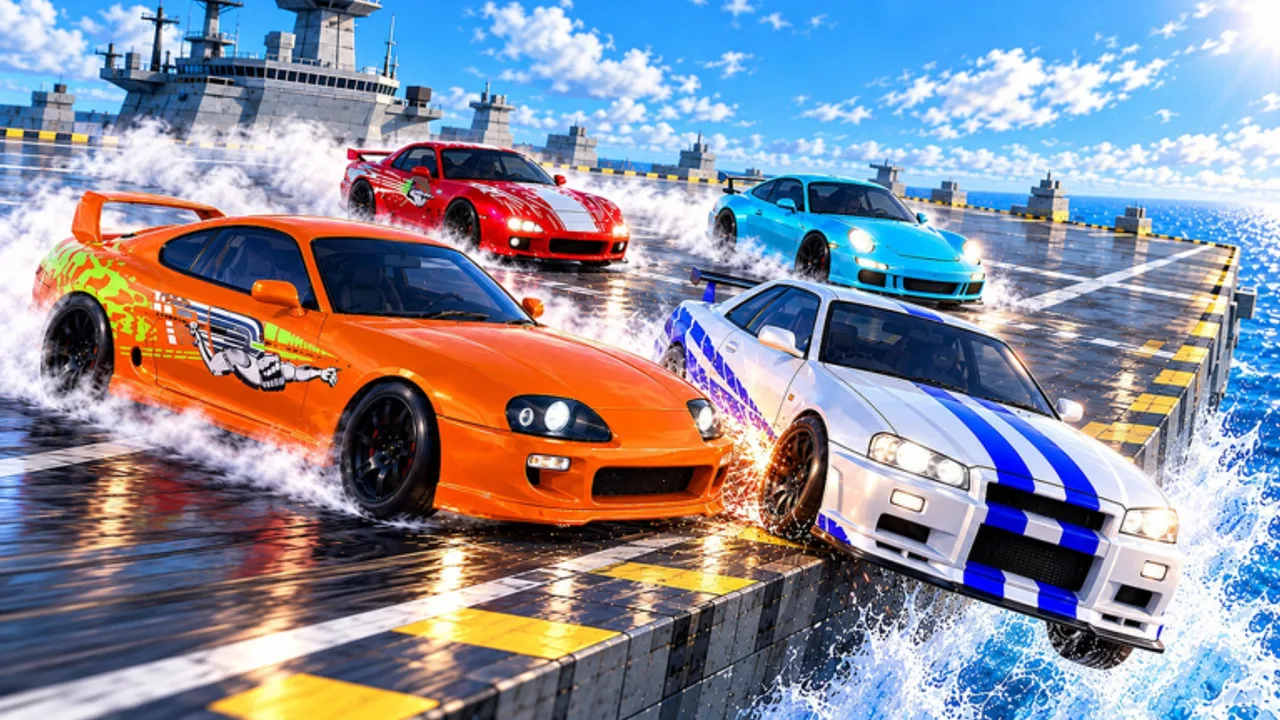
Clean inputs win splash fights. Cars Overboard uses familiar Roblox vehicle movement plus game-specific UI for Shop, Garage, and code redeem. This page is a practical controls and interface guide—not a physics thesis—so you can drive, look, and manage rewards without pausing mid-lobby. Pair it with Getting Started on day one and How to Win once steering feels automatic.
Remember the fantasy: last car standing on carriers and cargo ships, up to 10 players, ocean as elimination. Missed camera turns and mis-tapped Shop buttons lose rounds as surely as bad rams.
Driving basics (all platforms)
Throttle / brake: Ease into contact. Flooring every approach makes peels harder to modulate and increases self-yeets at yellow/red edges (see edge language on How to Win).
Steer in advance: Start turning before the bumper meets the target so the shove walks them outward. Late steering turns hits into messy spins.
Reverse intentionally: A short reverse can reset a bad nose-to-nose. Long reverse along a lip is how campers become victims.
Jump / handbrake style tools: If your vehicle bindings include parking-brake or hop assists inherited from Roblox defaults, test them in a quiet moment. Do not discover a binding for the first time during a 1v1 on the flight deck.
Keyboard & mouse (typical Roblox vehicle layout)
Exact keybinds follow your Roblox settings, but expect:
- WASD or arrow keys for drive/steer
- Space or bound brake/handbrake depending on your setup
- Mouse for camera orbit when not locked
- Esc / Roblox menu for settings, leave, and volume
Rebind anything that conflicts with your muscle memory from other car experiences. Consistency across games matters more than default purity.
Camera tip: Raise sensitivity until you can flick to a third party without losing throttle control. Too low and you die blind; too high and you seasick-miss the lip.
Gamepad
Controllers shine for analog throttle during peels.
- Use gentle trigger pressure when finishing an edge conversion
- Keep camera on the right stick; glance mid-deck between contacts
- Confirm that UI selection (Shop/Garage) uses clear face-button prompts on your device
- Deadzones: if micro-steering feels floaty near edges, tighten stick deadzone in Roblox/controller settings
Touch / mobile
Mobile lobbies are common—do not treat touch as second-class.
- Place thumbs so virtual controls do not cover critical HUD toasts (reward popups, Revive prompts)
- Consider a grip or landscape orientation for wider camera
- When opening Shop to redeem codes, pause in a safe spawn/UI moment—not mid-yellow-edge chase
- Paste codes from clipboard when possible; autocorrect loves ruining 2000LIKES (How to Redeem)
Essential game UI
Shop
Shop is where you redeem promo codes and interact with purchase/reward surfaces. Day-one priority: open Shop →code box →enter 2000LIKES / 100LIKES exactly →verify Coins, Revives, Spins, Crates. Full troubleshooting lives on How to Redeem Codes and the Codes Hub.
Garage
Garage stores unlockable cars, paints, and wraps. Browse before spending. Use Best Cars and Tier List so Coins go toward shove-relevant bodies. Cosmetics are fine after you can survive mid-lobby consistently.
Match HUD cues
Watch for player-count feel (who is still on deck), collision feedback, and any Revive affordance after a splash. If a prompt appears, decide deliberately—Revive discipline is a win-rate skill, not only a button skill.
Camera habits that raise survival
- After every shove, sweep once for third parties before chasing a new target.
- Near edges, keep a slice of steel visible in frame as a horizon reference.
- On cargo maps with clutter, peek around obstacles instead of hugging camera into walls (Maps).
- In late 1v1s, prioritize tracking the rival’s rear quarter over cinematic car selfies.
Settings worth checking
- Graphics level: Stable FPS > max fancy water. Frame dips during contact cost peels.
- Volume: Engine and collision audio can telegraph off-screen hits.
- Shift Lock / camera modes: Pick one scheme and stick with it for a week.
- Network: Soft rejoin if inputs feel delayed; do not “mlay through” rubber-band rams near water.
Practice routine for controls
Spend one short session touching only inputs:
- Figure eights mid-deck without approaching edges.
- Approach a lip, brake to a stop, reverse inland—then reps.
- Camera-only drill: keep a moving bot/player centered while idle-throttling.
- UI drill: open Shop and Garage twice each without looking at a guide.
- Redeem check: confirm you can still find the code box after a patch (Updates).
Then play real matches with How to Win goals.
Accessibility & comfort
If you get motion sick from high camera speed, lower sensitivity and widen FOV if available. Take breaks during Admin Abuse weekends—the chaos is louder and denser. Comfortable players make better reset decisions.
What controls cannot fix
No binding replaces map knowledge or role awareness. If you still over-commit, read Players. If mysterious —scripts” promise auto-steer, read Scripts and stay away. Official links remain on Wiki Links.
Related pages
Master the boring buttons. The flashy ocean dunks come after your fingers already know where Shop, Garage, throttle, and camera live under pressure.
Frequently Asked Questions
Quick answers about codes, cars, and ship PvP.
What are the default Cars Overboard driving controls?
Cars Overboard follows standard Roblox vehicle patterns—typically WASD or sticks for drive/steer, with camera on mouse or right stick. Always confirm bindings in your Roblox settings.
Where is the Shop for codes?
Open the in-game Shop from the HUD, find the code text box, enter the code exactly, and redeem. See the How to Redeem Codes page for troubleshooting.
Any tips for mobile controls?
Use landscape if possible, keep thumbs off critical popups, paste codes instead of typing, and avoid opening Shop while you are already on a dangerous edge.
Does camera sensitivity really matter?
Yes. You need to spot third parties quickly without losing steering precision. Tune sensitivity until both feel possible, then practice sweeps after every shove.
Should I change controls before learning to win?
Set comfortable bindings first, do a short input practice session, then focus on How to Win habits. Fighting your UI while learning peels doubles the difficulty.